Jira
Push tasks to Jira, pull them back, and keep client feedback flowing into the backlog your developers already work from.
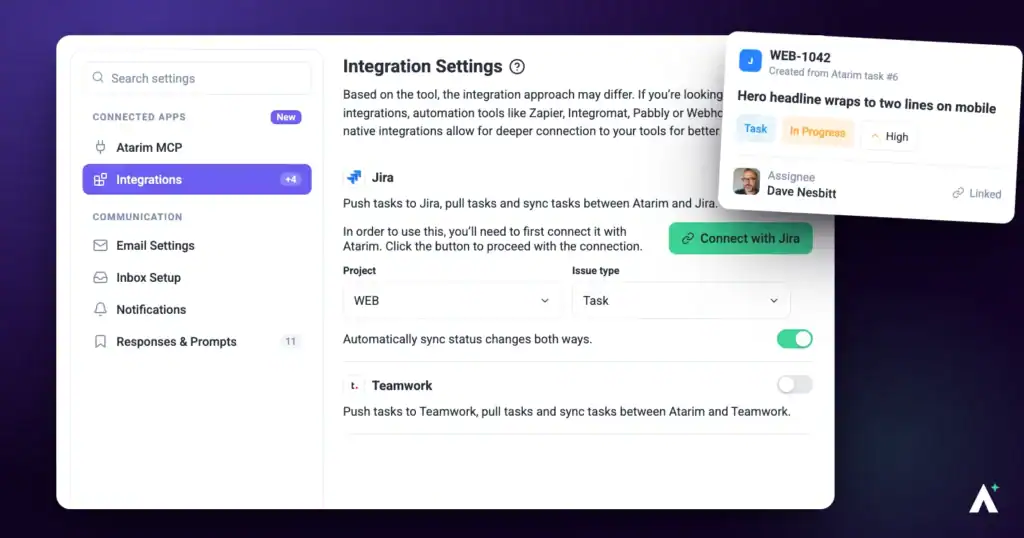
Client feedback captured visually in Atarim becomes an issue in the Jira project your developers already plan from. Setup has two parts — connect your Jira account, then decide which Atarim website feeds which Jira project. The destination is chosen per website, not once for the workspace.
One Jira project receives the tasks from your Atarim workspace.
The Jira integration lets you push tasks to Jira, pull tasks back, and keep the two in sync. Client feedback captured visually in Atarim becomes an issue in the project your developers already plan from, with the task’s details carried across.
Setup has two parts: connect your Jira account, then choose the Jira project your workspace’s tasks feed.
Connect Jira
Connecting is account-level. Which website maps to which Jira project is configured separately, below.
Instructions:
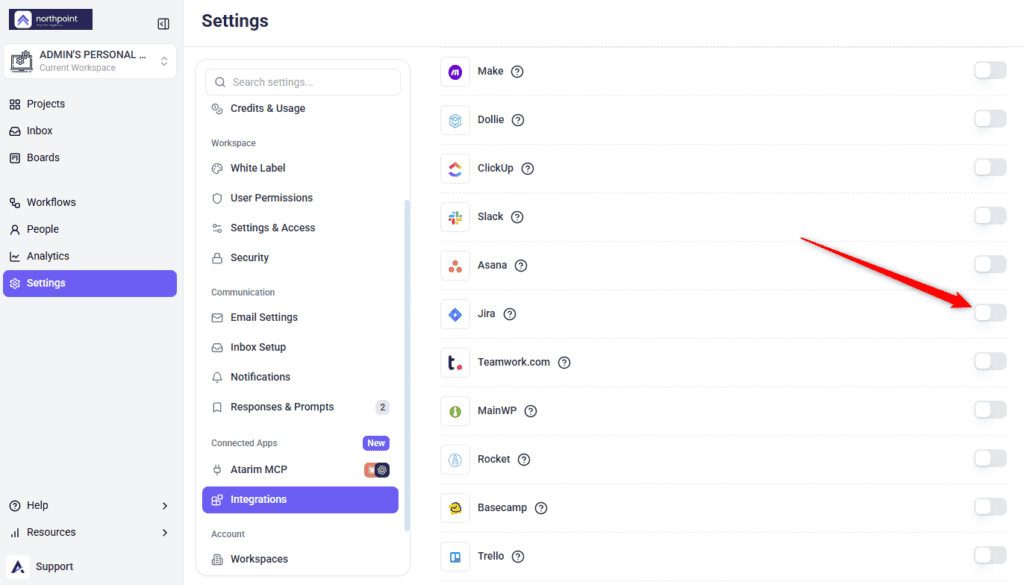
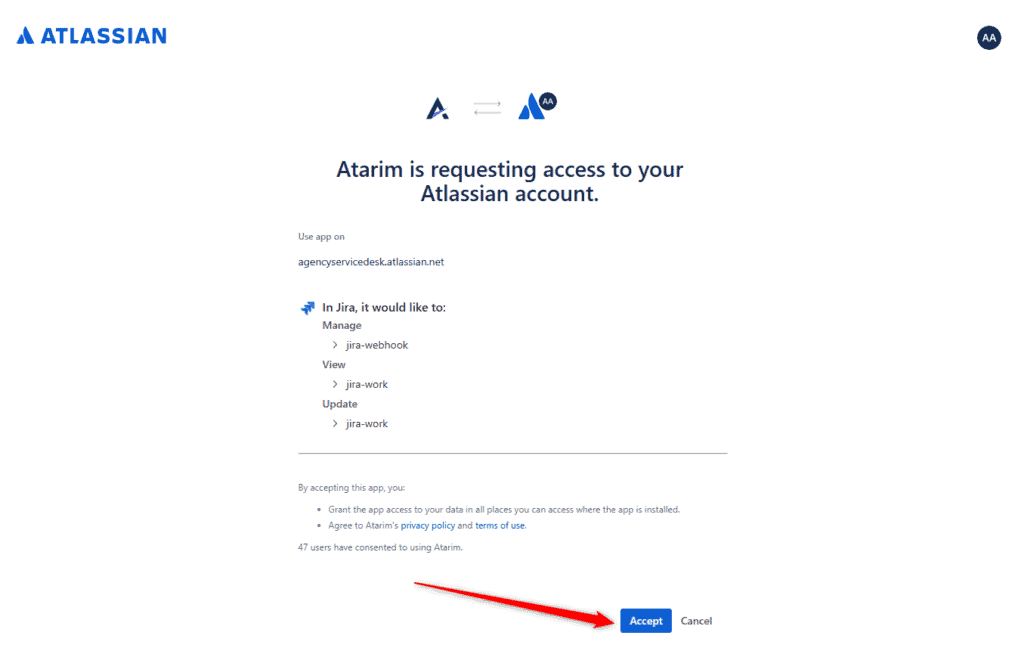
manage jira-webhook, and view and update jira-work. Accepting grants access to your data in all places you can access where the app is installed, and agrees to Atarim’s privacy policy and terms of use.
Choose the Atlassian Site and Jira Project
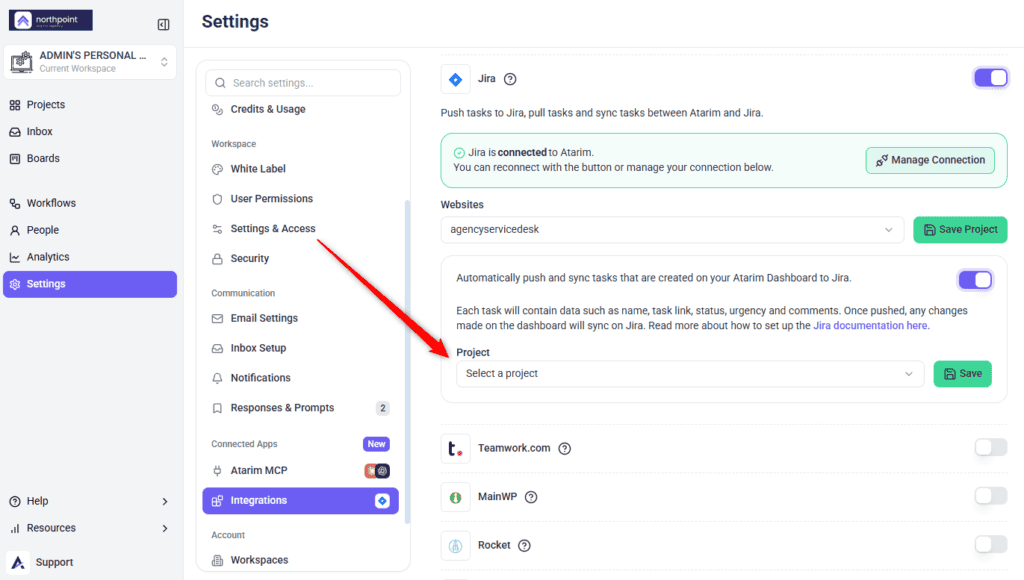
Configuration happens in two saves, which is easy to miss because they look similar. First you pick the Atlassian site, then you pick the Jira project your tasks feed.
1. Select the Atlassian Site
This is your Atlassian site — the Jira instance holding the projects Atarim can see. Despite the label, it is not a list of your Atarim websites.
Instructions:
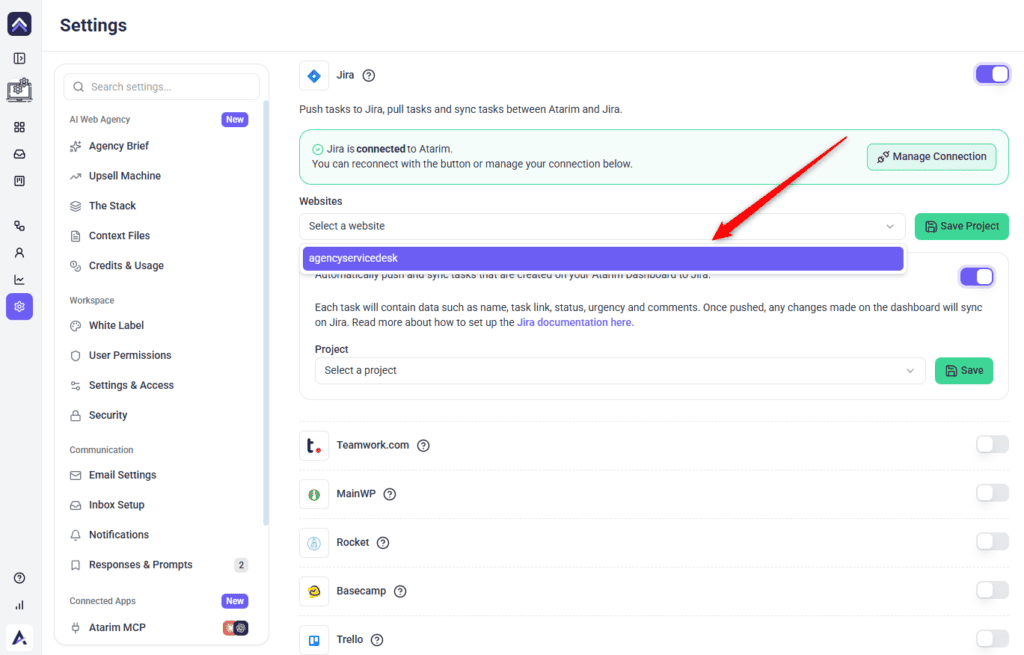
2. Turn On Syncing and Pick the Jira Project
Syncing runs both ways once it is on, so updates made in Jira come back to Atarim as well.
Instructions:
What Gets Pushed
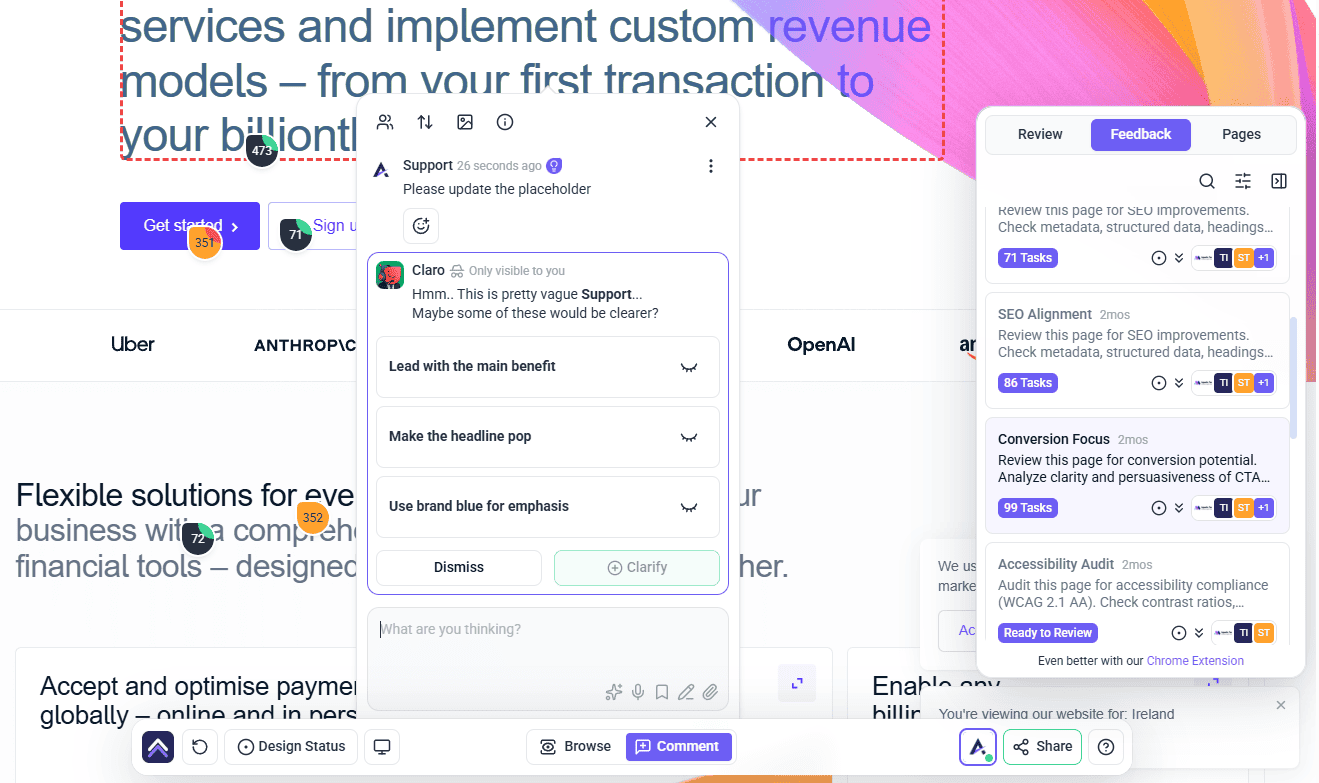
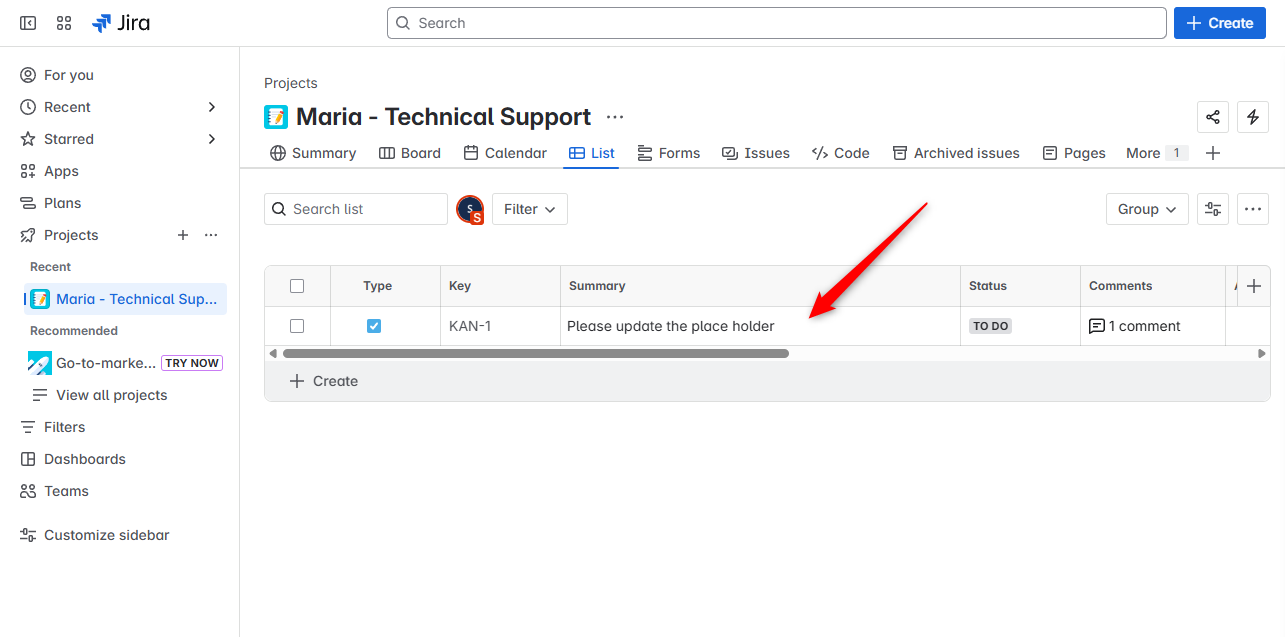
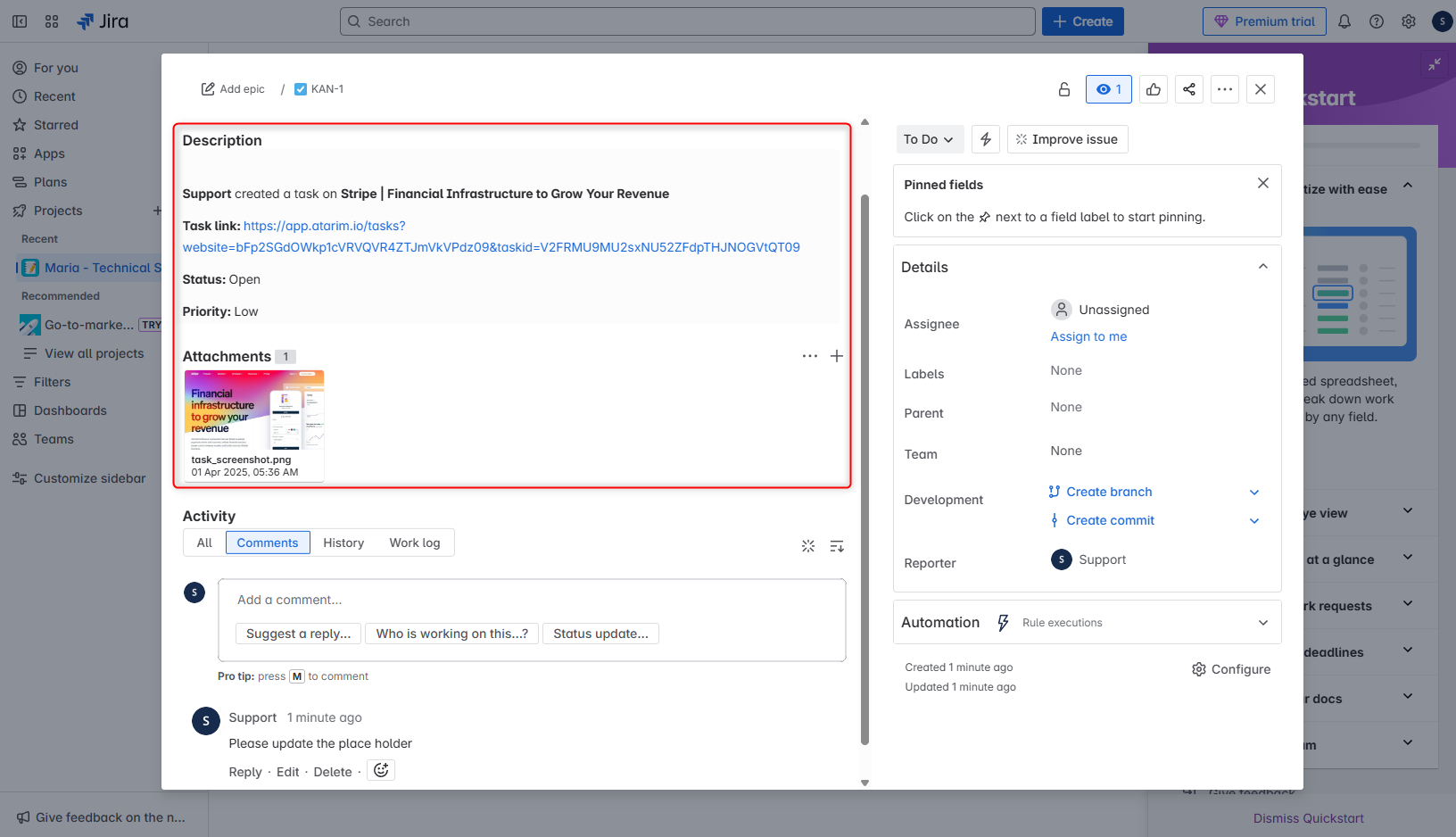
Each task pushed to Jira carries its name, a link back to the task, its status, its urgency and its comments. After the initial push, changes made on the Atarim dashboard continue to sync across to Jira.
Using Jira in a Workflow
The per-website mapping above pushes everything from that website automatically. If you would rather be selective, Jira is also available as an action inside Workflows — so you can send only the tasks that meet conditions you set.
Instructions:
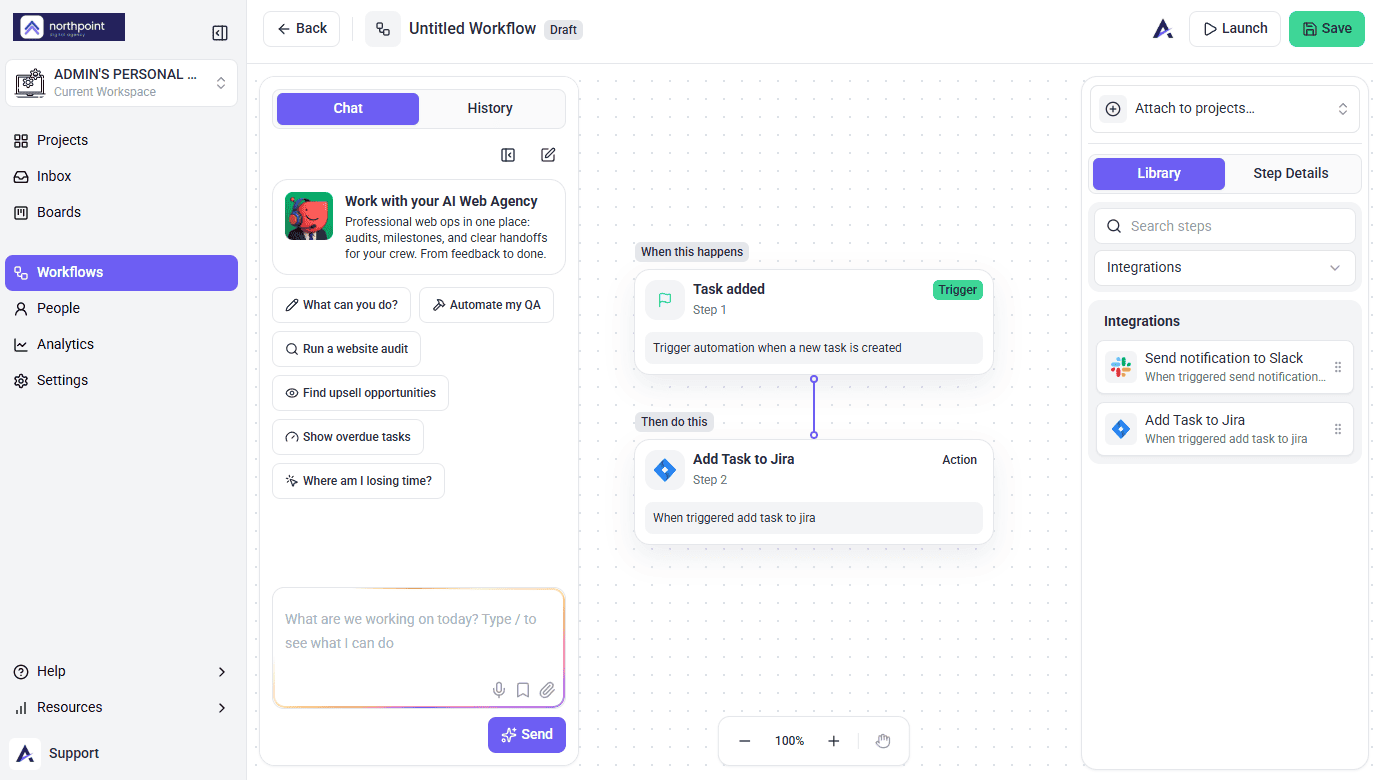
Setup at a Glance
| Step | Where it happens | What it needs |
|---|---|---|
| Switch Jira on | Atarim → Integrations | A plan that includes it, and permission to manage integrations. |
| Accept the access request | Atlassian | The right Atlassian site under Use app on. |
| Select the Atlassian site | Atarim | A connected Atlassian account. |
| Save Project | Atarim | An Atlassian site selected. |
| Turn on automatic syncing | Atarim | The Atlassian site saved. |
| Select the Jira project | Atarim | A live connection, so projects can load. |
| Save | Atarim | A project selected. |
Benefits
| Benefit | In practice |
|---|---|
| Feedback reaches the backlog | Client requests arrive where development work is actually planned. |
| Sync works both ways | Tasks can move from Atarim to Jira and back. |
| Choose the destination per push | Manual pushes and workflow actions can each target a different Jira project. |
| Context travels with the task | Issues arrive with the task’s details rather than a bare title. |
| Clients stay in Atarim | They never need a Jira seat for their feedback to be tracked. |
Example Use Cases
| Situation | How to set it up |
|---|---|
| Developers plan sprints in Jira | Point the workspace at the delivery project so requests enter the backlog automatically. |
| Several clients, several Jira projects | Give each client its own workspace, or push manually and pick the project per batch. |
| Clients giving visual feedback | Let them work in Atarim while issues appear in Jira. |
| Separating client work from internal work | Point the workspace at a dedicated project rather than a shared one. |
| Reporting from Jira | Sync feedback in so client requests appear in existing reports. |
FAQs
Does sync work in both directions?
Yes. Tasks can be pushed to Jira, pulled back, and kept in sync.
Can different websites use different Jira projects?
Not through the automatic sync — that stores one Jira project per Atarim workspace, and saving again replaces the previous choice. You can still send work to different projects: push a task or a bulk selection manually and choose the project at that point, add a Jira action inside a workflow, or use a separate workspace per client. Pulling issues in from Jira is also per-project and lands in the Atarim project you choose.
Do I need to create the Jira project first?
Yes. Atarim can only choose from projects that already exist in your connected Jira account.
What does Atarim push to Jira?
The task name, a link back to it, its status, urgency and comments. Later dashboard changes continue syncing across.
Why is the Save button greyed out?
Because no Jira projects have loaded. That usually means the connection is not returning data — reconnect and try again.
Do clients need a Jira account?
No. Clients work in Atarim; syncing happens between your two accounts.
Can I send only some tasks to Jira?
Yes. Use the Jira action inside a workflow instead of the workspace-wide sync, so only tasks meeting your conditions are pushed. You can also push individual tasks or a bulk selection by hand.
Can I change the mapping later?
Yes. Choose a different project and select Save again. It replaces the setting for the whole workspace.
What if the connection breaks?
Use the reconnect option in the Jira row of the Integrations panel.
Common issues
- The Project list is empty and Save is disabled — Atarim cannot retrieve your Jira projects. Reconnect the integration.
- The Jira option is locked — your plan does not include native integrations. The lock names the minimum plan required.
- Integrations is not in your settings sidebar — your role does not have access. Ask an Administrator.
- Your project is not in the list — create it in Jira first, then reconnect so the list refreshes.
- Tasks are not reaching Jira — confirm you used both saves (Save Project for the website and Save for the Jira project) and that automatic syncing is switched on.
- Tasks landed in the wrong project — the mapping points elsewhere. Change it and save again.
- Issues are being created twice — the website is mapped and a workflow is pushing to Jira. Use one or the other.
- The workflow will not save — a Jira project is required on the action. Choose one before saving.
- Only some websites sync — each website is mapped separately. Check the ones that are not syncing have a project set.
- The wrong Jira site got connected — the site under Use app on was the wrong one. Use Manage Connection to reconnect and accept on the right site.
- You cannot authorise Atarim in Jira — your Jira account may not have permission to approve apps. Ask a Jira admin.
Conclusion
Jira setup is short but has one detail that catches people out: the destination is chosen per website, not once for the workspace. Connect the account, then map each website to the Jira project it should feed.
Point the mapping at a project your team genuinely grooms — syncing runs continuously once configured, and an unwatched project quietly fills up.
Tips & best practices
- Create the Jira project before you start, so it is selectable during setup.
- Map each website deliberately rather than pointing everything at one project.
- Use a project your team actively grooms.
- Use both saves — Save Project for the website, then Save for the project.
- Reconnect rather than reinstall if projects stop loading.
- Choose either the per-website mapping or a workflow for a given site, not both.
- Check each website’s mapping when adding a new client.