How to Use Tags Effectively in Atarim
Seven things tags are genuinely good for — and the one thing to know before you name them.
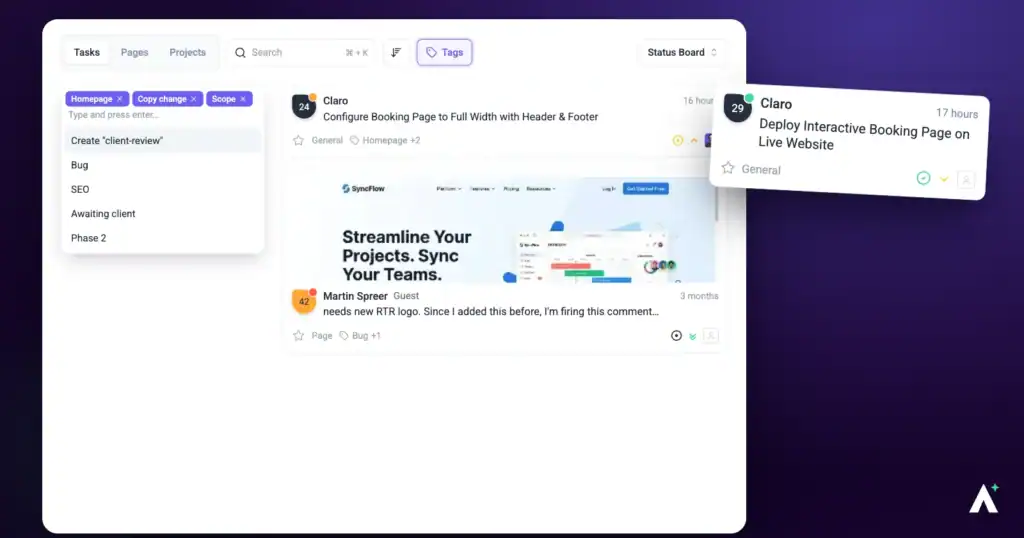
Status and priority are fixed sets. Tags are yours to define, which is what makes them useful for everything those two can’t express — and what makes them easy to let sprawl.
What Tags Are Good For
| Use | Example tags | Why it helps |
|---|---|---|
| Workflow stages beyond status | Client Review, Ready for QA, Needs Revision | Signals a dependency without changing the status. |
| Task type | Bug, Feature Request, Content Update | Makes the nature of work visible at a glance. |
| Stakeholder involvement | Marketing Team, Client Approval Needed | Shows who a task is waiting on. |
| Special flags | High Complexity, Requires Approval, Recurring | Draws attention to anything unusual. |
| Project components | Landing Page, Checkout Flow, SEO Audit | Groups work by area in a large project. |
| Automation triggers | Bugs, Urgent | A tag can start a workflow. |
| Strategic goals | Phase 1 Deliverable, Optional Feature | Keeps long-term objectives visible in daily work. |
Adding Tags to a Task
Tags carry what status and priority cannot — the component, the client, the release.
Instructions:
- Open a task from the Inbox or a Board.
- Find the tags control. In the Inbox and on Boards it is the tag icon in the task toolbar; in Collaborate and on designs it is the Add Tags field under Technical Details.
- Add an existing tag, or create a new one. A task can carry several tags at once.
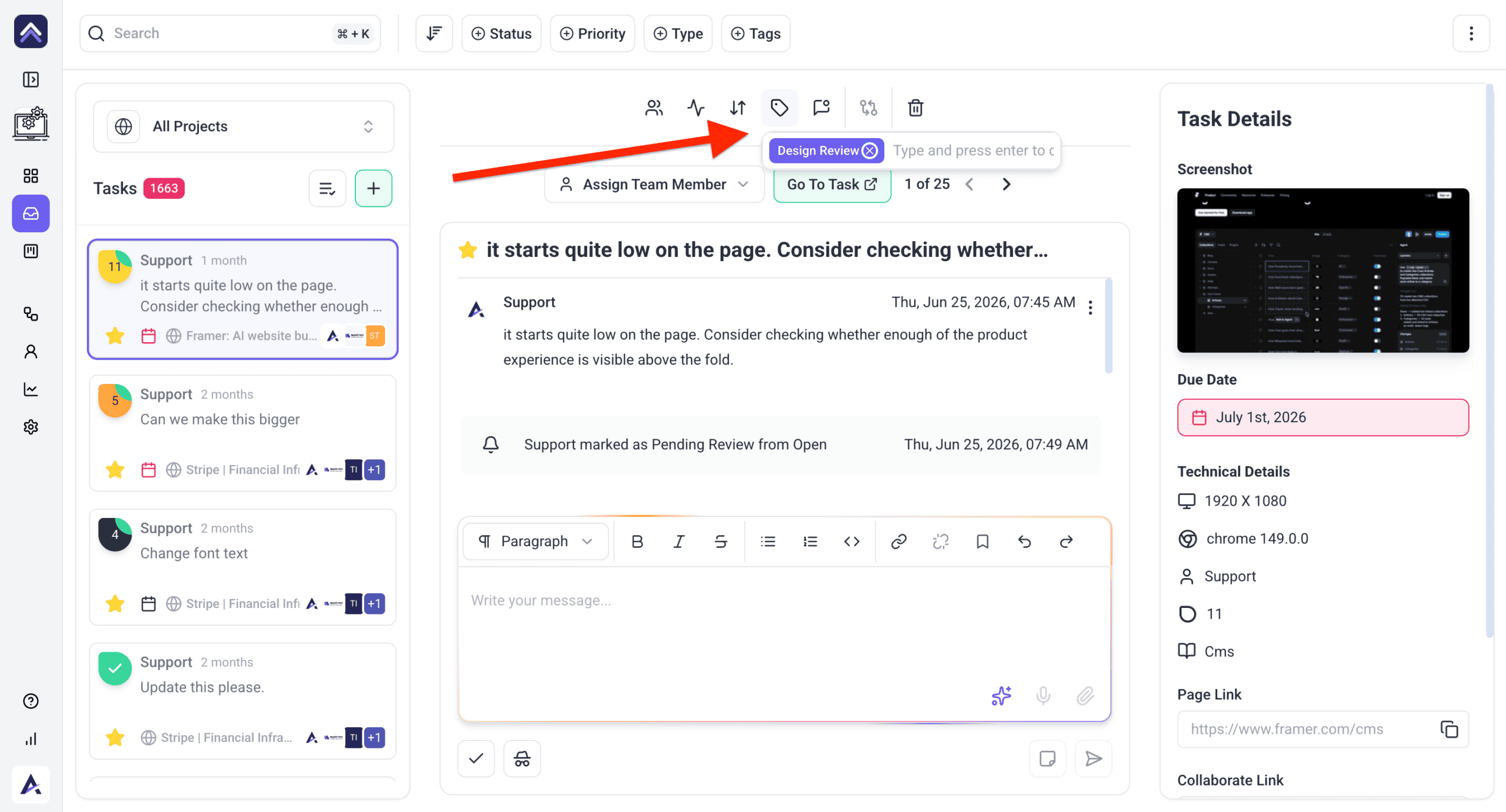
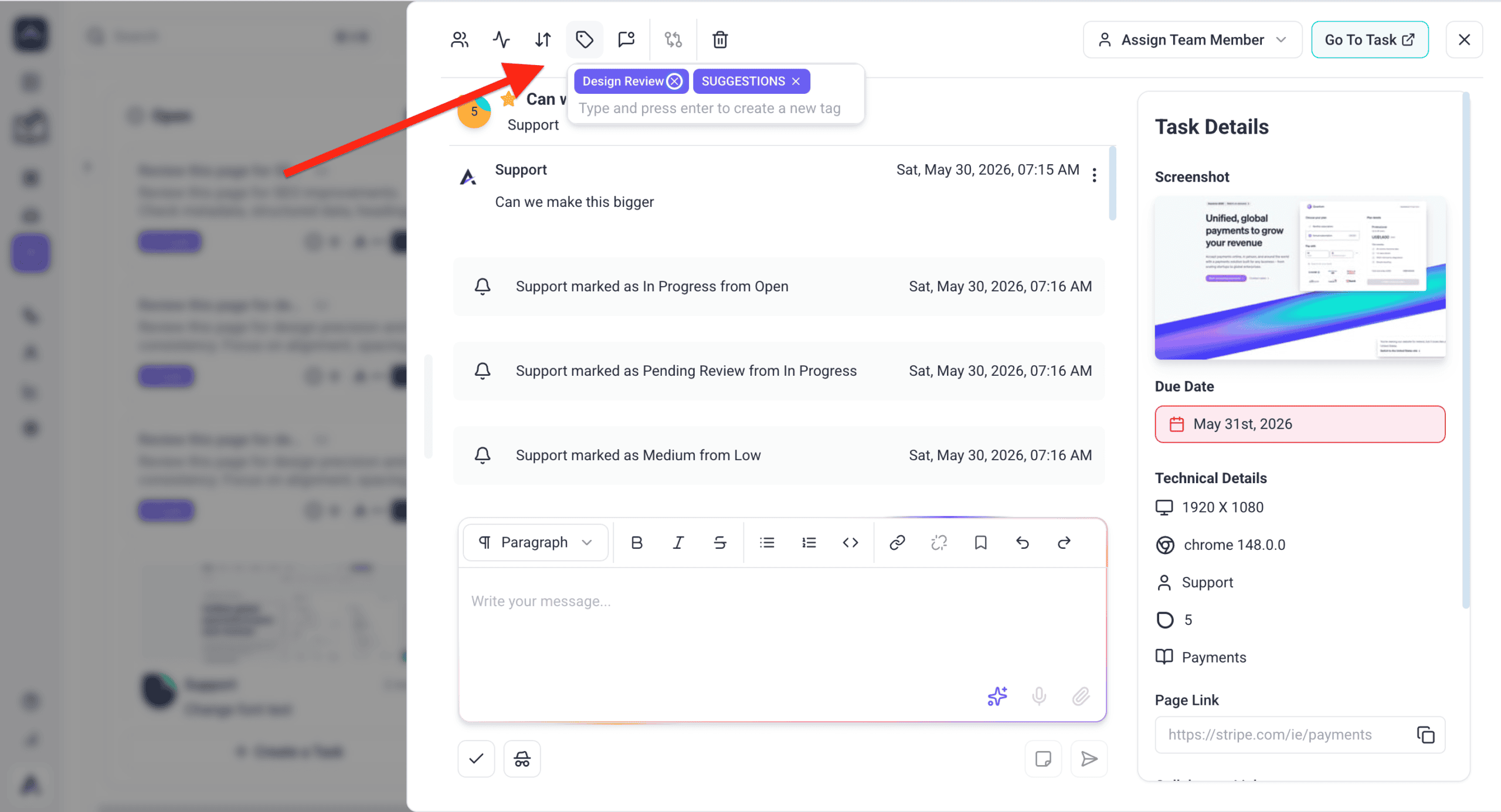
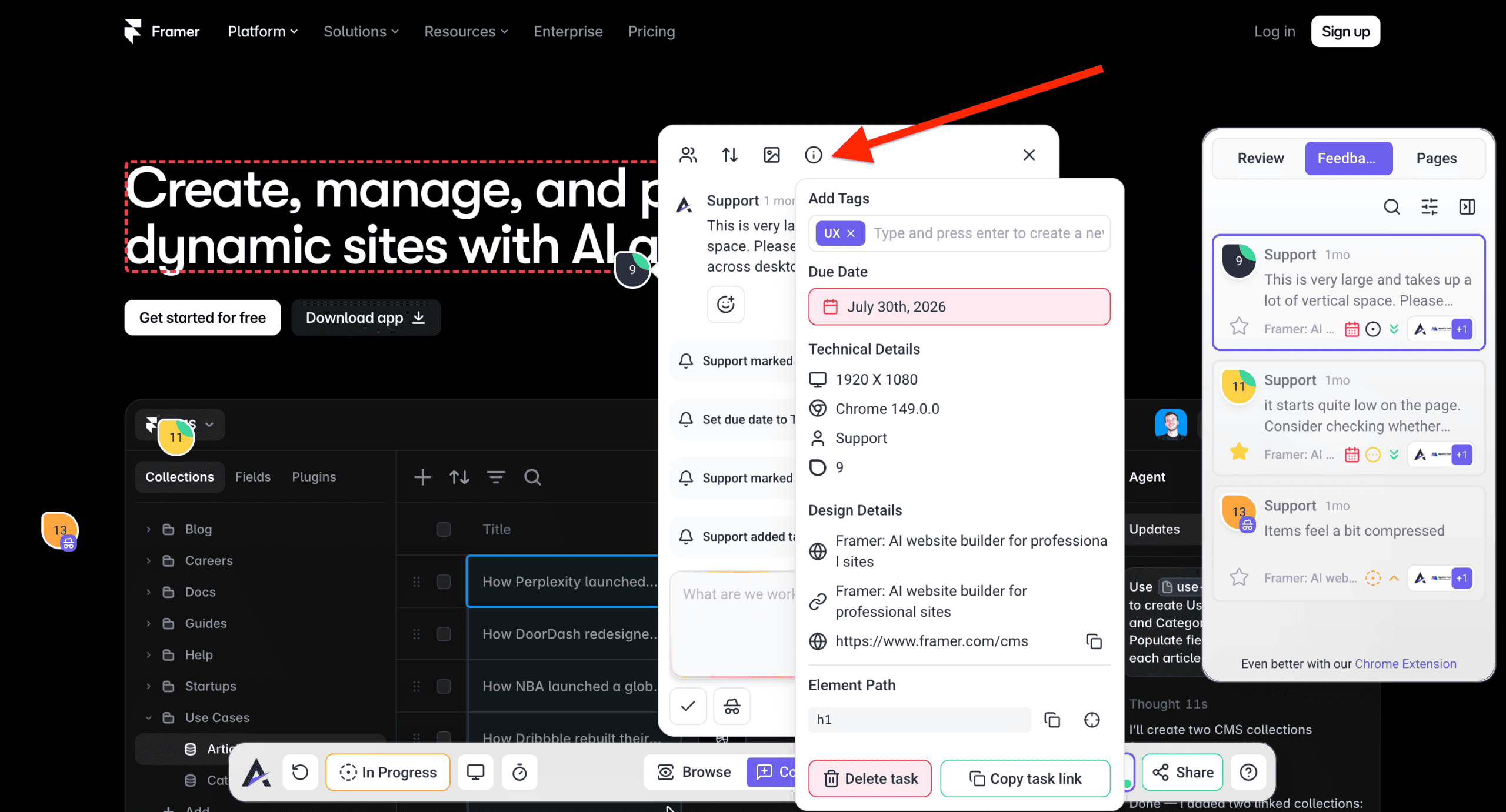
In the Inbox and on Boards, tags are a paid feature. If the tag control shows a lock, your plan doesn’t include it, and the lock names the plan required. If there’s no control at all, your role doesn’t have the tags permission. The Add Tags field in Collaborate is always available.
Filtering by Tag
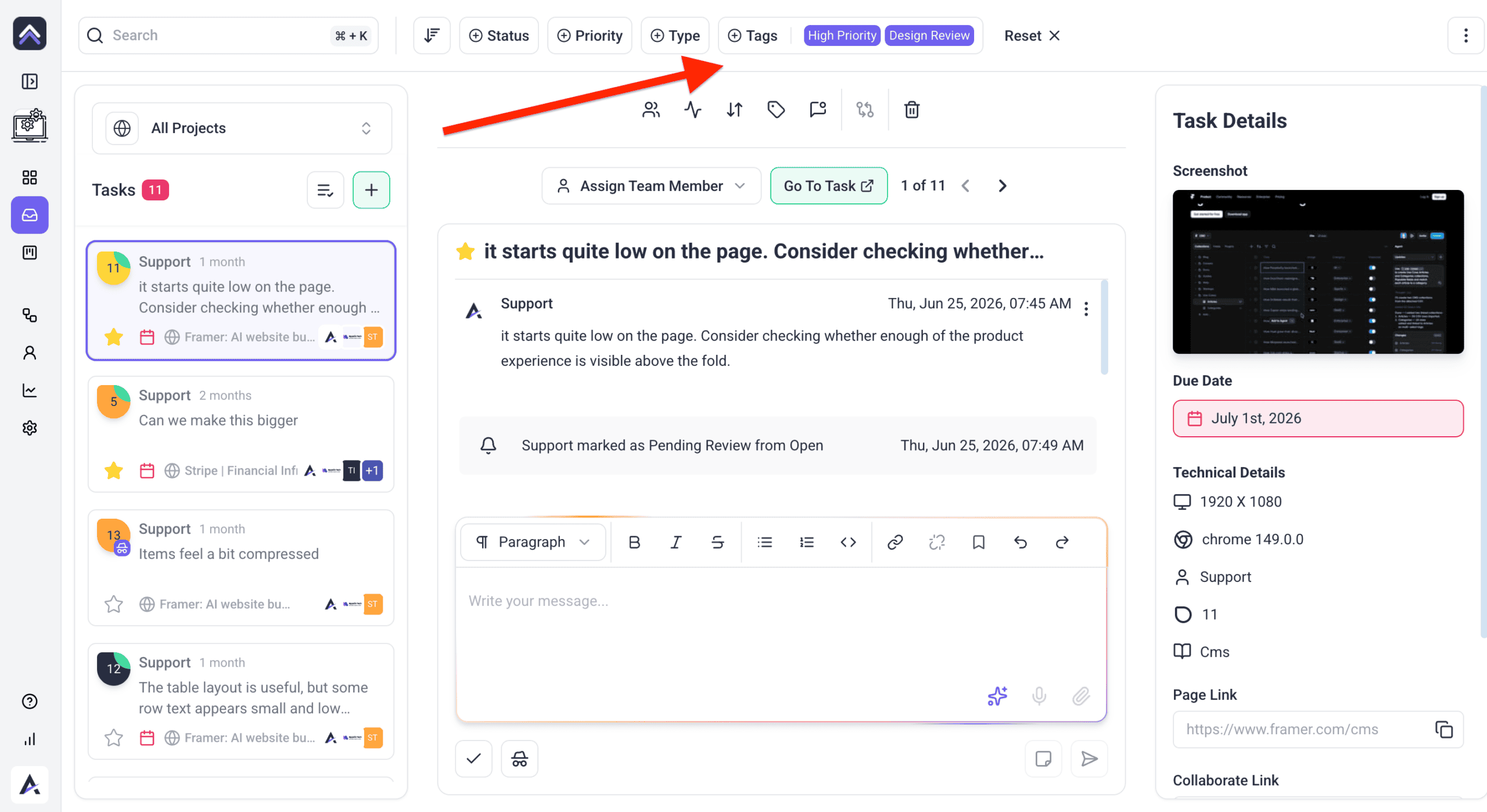
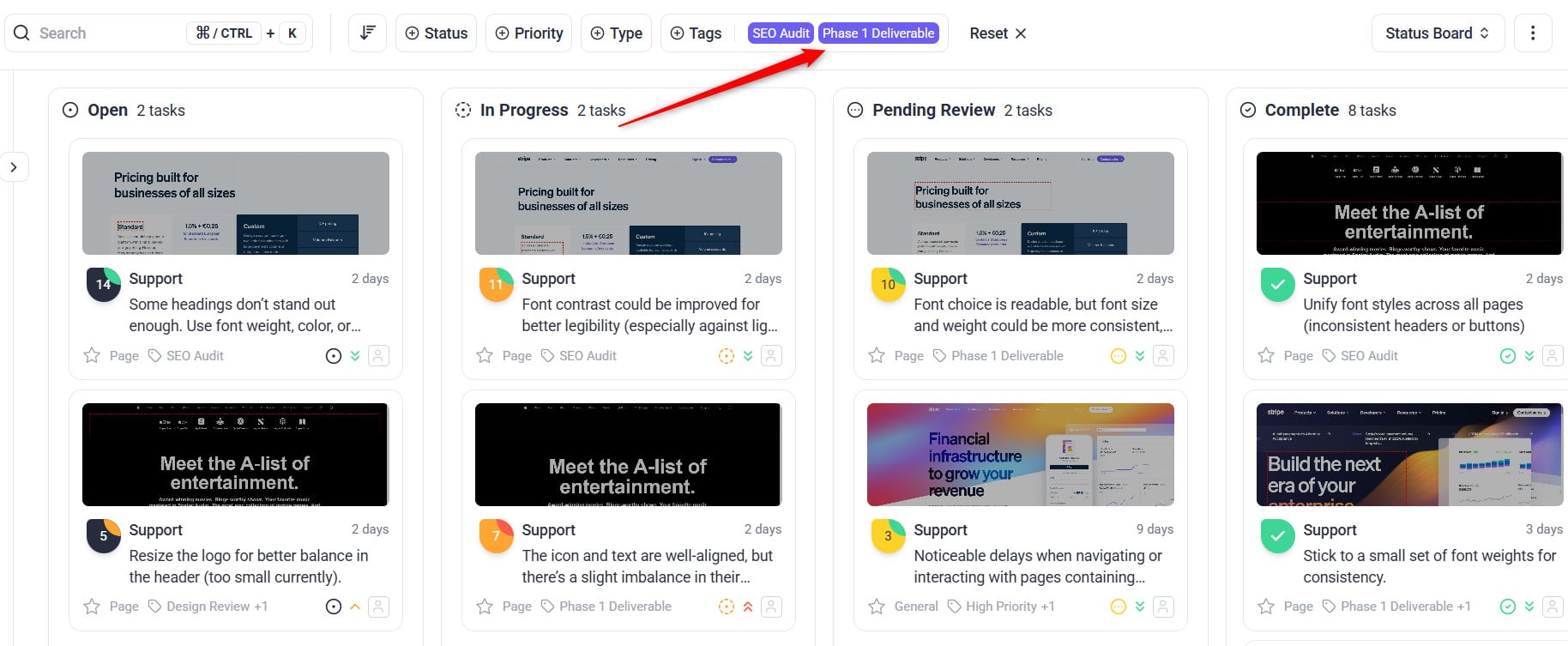
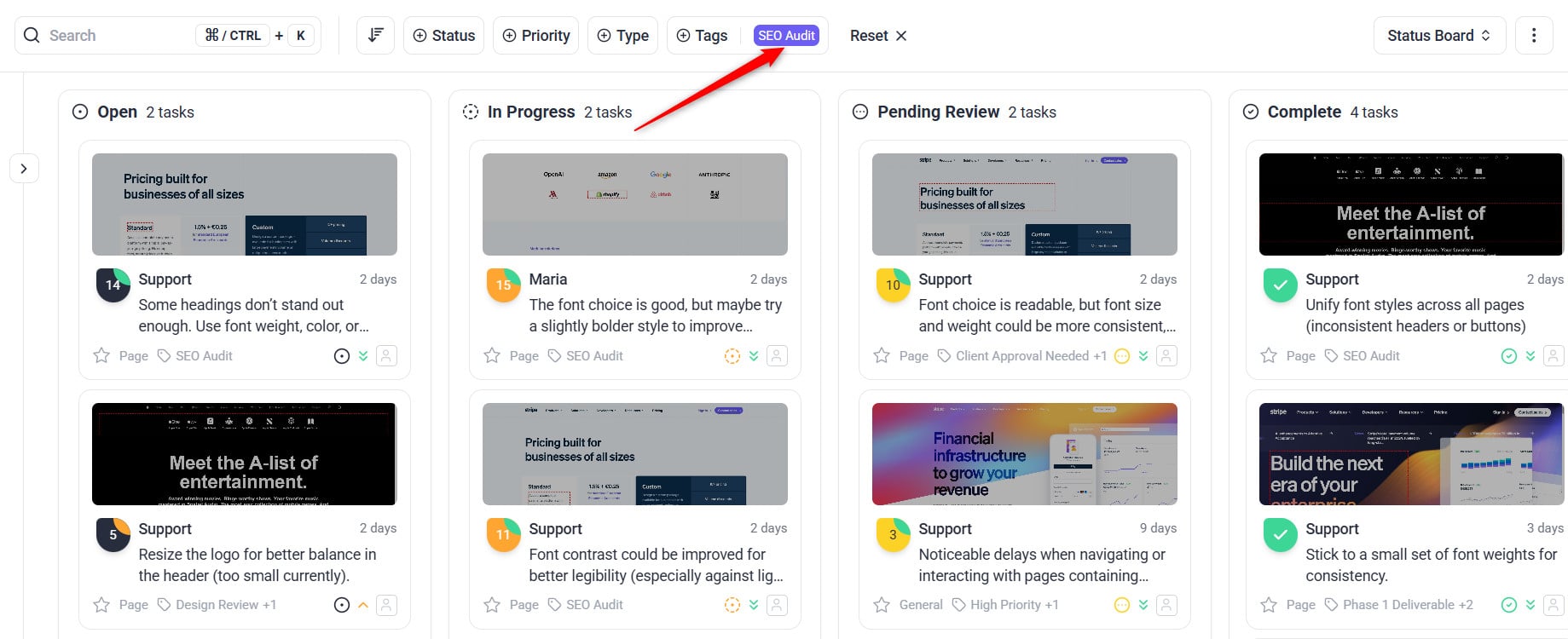
Filters stack, so tags earn their keep combined with status or assignee rather than used alone.
Instructions:
- On the Inbox or Board, open the filter in the top bar.
- Select the tags you want. Only tasks carrying those tags remain.
- Combine tag filters with status or priority to narrow further. With one project selected, you can also filter by assignee.
Driving Automation with Tags
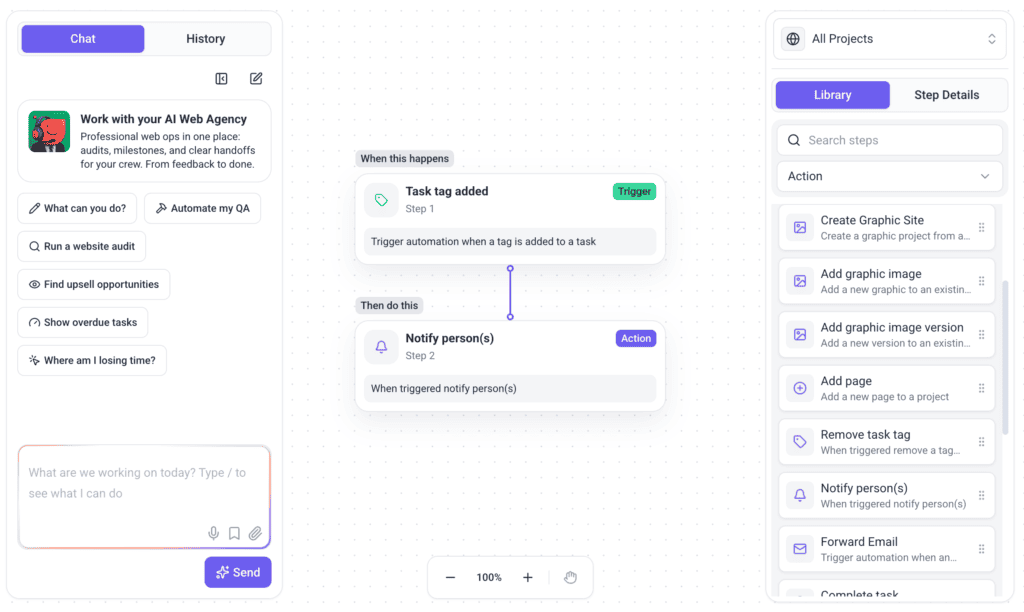
A tag makes a convenient trigger because applying one is a deliberate act rather than a side effect of other work.
Instructions:
- Open Workflows.
- Create a workflow with the Task tag added trigger.
- Choose the action — notify someone, or push the task to a connected tool.
- Test it with a real task before rolling it out.
Workflows are a paid feature. Each run uses 10 credits, plus whatever any AI steps in it use. Team Members don’t see Workflows by default.
Keeping the Tag List Usable
- Agree a shared list so people don’t create near-duplicates like “bug” and “Bug”.
- Use consistent naming, particularly for components and stages.
- Audit periodically and remove tags nobody filters by.
- Don’t overuse special flags — if everything is High Complexity, none of it is.
FAQs
Can a task have several tags?
Yes. Apply as many as are genuinely useful.
Who can see tags?
Everyone collaborating on the project, including clients and guests. Guests can also change a task’s tags, so keep internal detail out of tag names.
Can I edit or delete tags?
You can change which tags sit on a task, from the task itself. What you cannot do is manage the tag list centrally — there is no tag management screen, and tags cannot be renamed or merged. To consolidate two near-duplicates, filter to one of them, select the tasks, and swap the tag using the bulk control.
Why can I not see the tags control?
In the Inbox and on Boards, two things can hide it. Tags are a paid feature there, so below the minimum plan you get a lock that names the plan required. Separately, if your role doesn’t have the tags permission, the control isn’t shown at all. The Add Tags field under Technical Details in Collaborate is always available.
How do I filter by tag?
Use the filter in the top bar of the Inbox or Board and select the tags you want.
Can tags trigger automation?
Yes. A tag being applied can start a workflow, and it’s also available as a webhook event.
How many tags should we have?
Few enough that everyone remembers them. If the picker needs scrolling, the list has outgrown its usefulness.
Common issues
- Near-duplicate tags everywhere — agree a shared list, then audit and remove the strays.
- A client mentioned a tag you meant internally — tags are visible to clients and guests. Use internal tasks or private notes instead.
- A guest changed a task’s tags — expected. Guests can edit tags on tasks they can see.
- A tag-triggered workflow isn’t firing — check the rule’s conditions match the tag name exactly.
- Filtering returns nothing — confirm the tag is applied to tasks in the project you’re viewing.
- Nobody applies tags consistently — the list is probably too long. Cut it back to the few that get filtered.
Conclusion
Tags carry the context status and priority can’t — dependencies, task types, components and strategic goals. The discipline is restraint: a short shared list that people actually filter by beats a comprehensive one nobody maintains.
And remember clients can see them. Name tags as though someone outside your team will read them, because they can. Discover Using Tags For Task Organization
Tips & best practices
- Keep the tag list short enough to remember.
- Test tag-triggered automations before rolling them out.
- Write tag names as though a client will read them.